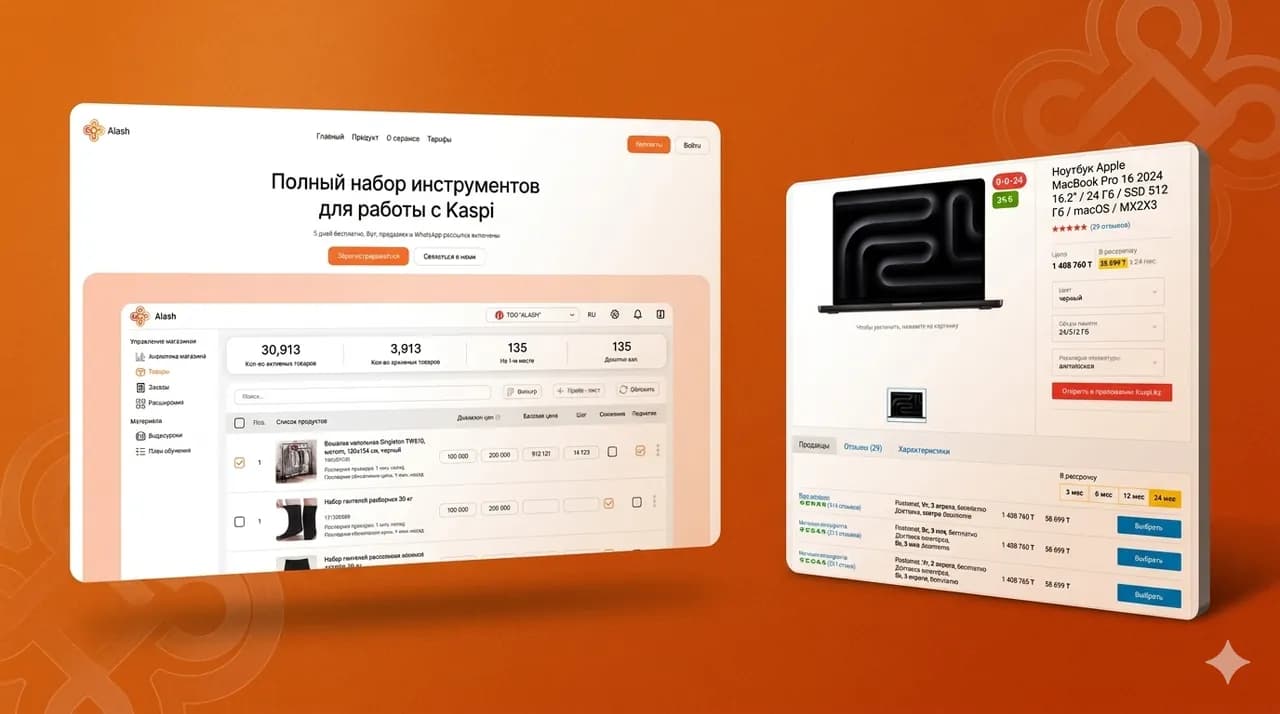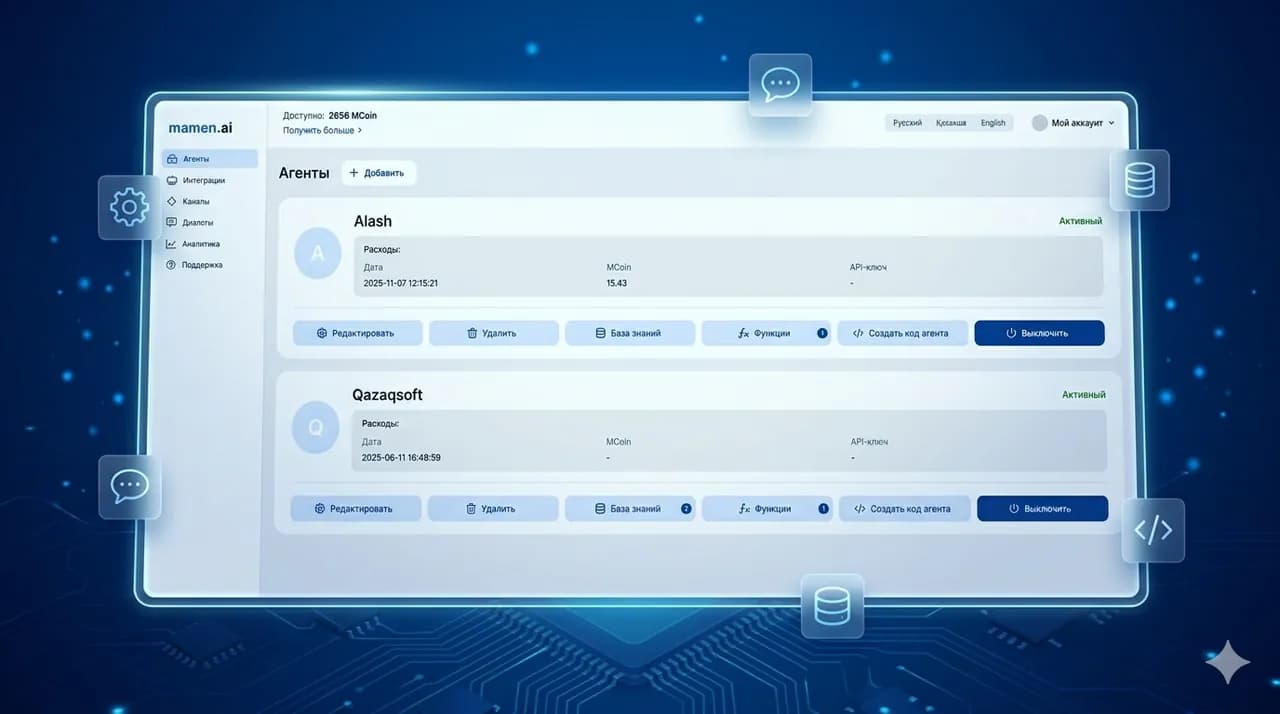
Color in a digital product is often treated as a matter of taste. The owner likes blue — so the site will be blue. They want to look bold — so we'll add more red, yellow and gradients. In practice this approach quickly creates problems.
A user opens a site, a CRM, a customer portal or a mobile app not to evaluate the palette. They want to understand where they are, what's being offered, where to tap, how to submit a request, how to pay, how to find the right section or how to complete a work task without extra effort.
At Qazaqsoft we often see the same situation: the product has features but the interface doesn't help users work with them. Buttons get lost. Errors aren't noticed. Important statuses look the same. Sections don't differ from each other. The user starts thinking in places where the interface should have guided them.
Color in UX/UI isn't there for decoration. It helps direct attention, reduce errors, build trust and guide the person through the right scenario. This is especially important for websites, CRM, LMS, marketplaces, HR systems and services where the user has many actions, data and decisions.
Why color in an interface affects more than just the product's appearance
Color works faster than text. A person may not have read the headline yet but already feels: the interface is calm or chaotic, trustworthy or doubtful, simple or overloaded.
For business this isn't abstract aesthetics. Visual perception determines whether the user stays on the site, fills out a form, understands the pricing, trusts the service with their data, and whether an employee can quickly work in CRM or an admin panel.
If the palette is chosen randomly, the product may look beautiful in a presentation but work poorly in real scenarios.
How the user reads an interface in the first seconds
The first impression of a digital product forms almost instantly. The user doesn't analyze the design professionally. They simply feel whether it's comfortable or not.
At this stage color helps answer several questions:
- is it clear where the main action is
- is it safe to submit a request or data
- is this a modern product
- can the company be trusted
- is the interface overloaded
For example, for a B2B site a palette that's too aggressive may create a feeling of pressure. For an educational platform a too cold and dark interface may reduce engagement. For a CRM, weak color differences between statuses may make it harder for managers to quickly navigate requests.
We always look at color not separately but alongside the product's task. The same shade may work well on a promo site and interfere with a working system where a person spends several hours a day.
Why color helps you understand faster where to tap and what's important
In a good interface the user shouldn't have to think every time: is this a button or just a colored block, is this the main action or a secondary one, is this an error or a regular notification.
Color helps build visual logic:
- the main action stands out more
- secondary actions look calmer
- errors are noticed immediately
- successful actions are clearly confirmed
- inactive elements don't compete with active ones
For example, on a request page the submit button should be more noticeable than the link to the privacy policy. In a CRM the 'urgent' status should differ from a regular task. In an LMS a completed lesson should visually differ from an unfinished one. In a marketplace the 'Place order' button should be clearer than additional settings.
When the color logic is right, the user moves through the scenario faster. When it isn't, the interface starts demanding extra attention.
How a color palette affects trust in a site, app or CRM
Trust is built not only from texts, reviews and cases. The visual system also affects the feeling of reliability.
For a corporate site, restraint, readability and a confident structure matter. For a medical service — calmness and tidiness. For a fintech product — security and control. For an HR platform — clarity, neutrality and comfort for different user groups.
If color contradicts audience expectations, trust decreases. The user may not be able to explain what exactly they don't like, but the feeling will be: 'something is off'.
In our practice we consider not only brand colors but also the context of use. If the product is used by employees every day, the palette shouldn't be tiring. If the site needs to sell a service, accent colors should help guide the user to a request. If the system contains a lot of data, color should help orient rather than create noise.
What business tasks color solves in UX/UI design
The color system in an interface must solve specific tasks. We don't start with the question 'which color is prettier'. We start with: what should the user do and what does the business want from this product.
For a site this can be a request, a call, a registration, a presentation download. For CRM — quickly managing customers and deals. For LMS — completing lessons and tracking progress. For a marketplace — finding a product, adding it to the cart and paying. For an HR system — convenient work with vacancies, candidates and internal processes.
Color helps make these actions clearer.
Increasing the visibility of key actions
In any digital product there are actions that matter more than others. Submit a request. Buy. Sign up. Add a product. Create a task. Confirm a payment. Assign a responsible person.
If all elements look the same, the user doesn't understand what to do next. If there are too many accents, they get lost too.
The right color system helps highlight the main action without visual pressure. For example, on a landing the accent button should stand out against other blocks. In an admin panel the save button should differ from the cancel button. In CRM the 'move deal to next stage' action should read faster than service settings.
It's important not just to make a button bright. It's important to make it logical within the whole interface.
Reducing errors when filling out forms and submitting requests
Forms often become the weak spot of a site or app. The user is ready to submit a request but encounters unclear fields, invisible errors or an unclear confirmation of submission.
Color helps here on several levels:
- shows the active field
- highlights an error
- indicates required elements
- confirms successful submission
- separates the main path from additional settings
For example, if a user enters a phone number incorrectly, the interface should quickly show where the error is and what to fix. But red color alone isn't enough. A good interface duplicates the meaning with text, an icon or a hint. That way the product remains clear for people with different visual perception.
For business this affects the number of completed requests. The less the user hesitates and makes mistakes, the higher the chance they reach the end of the scenario.
Simplifying navigation in complex systems
In CRM, LMS, HR systems, marketplaces and admin panels the user works not with one page but with many sections, roles, statuses and data.
Color helps understand the structure faster:
- where the active section is
- what status the request has
- which task is overdue
- which lesson is already completed
- which order needs attention
- which employee or department is responsible for the process
If color codes are chaotic, the system becomes heavy. The user spends time not on work but on decoding the interface.
So when building complex products we plan the rules of color statuses in advance. One color should mean one action or state across all sections of the product. If green means 'successful', it shouldn't mean 'awaiting review' elsewhere.
Shaping the right perception of the brand
Color affects how a brand is perceived before texts are read. It can make a company more technological, calm, premium, accessible, strict or dynamic.
But here it's important not to slip into decorativeness. The brand palette must work in the interface. Sometimes a color looks good in a logo but doesn't suit buttons, tables, charts, forms and notifications.
We often divide colors into several groups:
- brand colors for recognition
- accent colors for actions
- system colors for errors, success and warnings
- neutral colors for backgrounds, text, borders and dividers
This way the design stays connected to the brand but doesn't prevent the user from completing tasks.
Supporting sales, registration, booking and other conversion scenarios
Color can strengthen conversion scenarios if it's built into the overall UX logic. It helps show the user the next step, reduce anxiety, highlight a benefit, draw attention to important information and confirm completion of an action.
On a service site this can be the path from the first screen to the request form. In a mobile app — registration and the first target step. In a marketplace — moving from a product card to payment. In an HR system — submitting an application or processing a candidate.
Color doesn't replace a strong offer, clear structure and good copy. But it helps the user move faster through a path that's already properly designed.
Where color matters most: sites, CRM, LMS, marketplaces and mobile apps
The more complex the product, the higher the role of color. On a simple promo site, palette affects first impression and leads. In CRM or LMS it also affects people's daily work.
We see that businesses often underestimate this. At the start it seems the main thing is just 'to make it pretty'. But after launch questions appear: why do managers confuse statuses, why don't users reach payment, why don't employees understand where to look for the right section, why does the admin panel look overloaded.
A color system helps prevent some of these problems already at the design stage.
Color on a corporate site and landing pages
On a site, color is responsible for the perception of the company and the user's movement toward the target action. It helps highlight the offer, CTA, advantages, forms, cases, pricing and contact blocks.
For a corporate site, balance is important. A palette that's too calm can make the page faceless. One that's too bright can reduce trust, especially in the B2B segment.
We look at the site as a sales and communication tool. So the color system must help the user:
- quickly understand what the company does
- see the key offer
- distinguish important blocks from secondary ones
- reach the lead form or contacts
- not get tired from visual noise
This is especially important for companies in Kazakhstan working with different audiences: owners, directors, marketers, HR departments, operational teams. The interface should be clear not to one group but to several user types.
Color in online stores and marketplaces
In eCommerce, color is directly tied to choice and purchase. The user compares products, looks at prices, applies filters, adds items to the cart, places an order.
If color logic is weak, problems appear:
- discounted items aren't highlighted
- the buy button is lost
- filters look like main content
- errors during checkout aren't visible
- delivery statuses are unclear
- the user isn't sure they completed the payment
For marketplaces repeatable rules are especially important. Product cards, filters, categories, cart, customer portal, order statuses and notifications should work as a unified system.
We take this into account when designing the interface and admin panel. If managers will be adding products, changing statuses, launching promotions and processing orders, color logic must be clear not only to the buyer but to the internal team.
Color in CRM and internal business systems
In CRM, color helps employees understand process states faster. It's not about beauty but about work speed.
For example, a manager needs to see immediately:
- new requests
- overdue tasks
- priority customers
- successfully closed deals
- problematic stages
- statuses of payments or documents
If all statuses look the same, the manager spends more time checking details. If there are too many statuses and each is highlighted with a bright color, the interface becomes noisy.
In CRM we try to make the color system calm but informative. The main interface shouldn't distract. Accents should appear only where action is actually needed.
This is especially important for department heads and operational directors. A good visual system helps faster control of processes and seeing where intervention is required.
Color in LMS and learning platforms
In LMS, color affects motivation, orientation and understanding of progress. The user must see what's already completed, what's open now, where there's an error in a test, which module comes next.
For learning platforms it's important to avoid two extremes. First: a too dry interface that looks like a spreadsheet. Second: a too bright design that distracts from learning.
An LMS color system should help:
- separate modules and lessons
- show progress
- highlight tasks and deadlines
- indicate test results
- maintain engagement without overload
If the platform is used by company employees, it's important to consider the length of use. The interface should be comfortable for regular use, not just impressive on the first screen.
Color in mobile apps and frequently used services
In a mobile app the user has less space and more distractions. So color must work especially precisely.
On a small screen you can't overload the interface with accents. Buttons, statuses, notifications and navigation must be understandable quickly. The user can open the app on the street, in transit, in a hurry, in different lighting.
We take this into account when building mobile interfaces. We check how the main screens look, how noticeable actions are, whether elements blend together, whether the palette is tiring with frequent use.
For business this matters because a mobile product often becomes a permanent point of contact with the customer or employee. If it's inconvenient to use every day, beautiful design won't save the product.
How color directs the user's attention
The user doesn't read an interface linearly. They scan the screen, look for familiar elements, identify contrasting zones with their eyes, and only then make a decision.
Color helps direct this process. But it only works when there's a system in the interface. One accent color for main actions. A calm palette for background. Clear system colors for statuses. Sufficient contrast for text and buttons.
Without this, color starts competing with itself.
Accent buttons, links and action elements
Accent color is needed for elements that lead the user to an important action. This can be the request, purchase, registration, save or move-to-next-step button.
The problem starts when everything becomes accented: buttons, icons, headings, banners, badges, links, cards. In such a situation the user stops understanding what's really important.
We usually set priorities:
- the main action is the most visible
- secondary actions are calmer
- service links don't compete with the CTA
- dangerous actions are visually separated
- inactive elements don't look clickable
Then the interface becomes honest. It doesn't force the user to guess.
Visual hierarchy of blocks on a page
Color helps show which blocks are main and which are additional. This is especially important on long pages, in customer portals and in systems with lots of information.
For example, on a service page the main screen may have a stronger visual accent. The benefits block may be calmer. The lead form should stand out again. FAQ and technical info can be styled neutrally.
In CRM or an admin panel hierarchy works differently. There the accent shouldn't constantly press on the user. The main task: quickly distinguish working zones, statuses, notifications and actions.
We design hierarchy before the final visual rendering. First we define what the user should see first, what second, and what can stay in the background. After that color reinforces the already-built UX logic.
Color separation of primary and secondary actions
One common mistake in interfaces: equally noticeable buttons for actions of different importance.
For example, 'Submit request' and 'Clear form' sit side by side. If both buttons are equally bright, the user may make a mistake or slow down. Same in an admin panel: 'Save' and 'Delete' shouldn't look like equivalent actions.
Proper separation helps reduce errors:
- the primary action is highlighted with color
- the secondary action can be outlined or neutral
- a dangerous action requires a separate visual pattern
- cancel shouldn't compete with continuing the scenario
This is especially important in systems where a user error can cost money, time or data.
Why too many bright elements reduce conversion
A bright color only works against a calm system. If the whole interface is bright, there's no accent left.
When there are many competing colors on the screen, the user doesn't decide faster — the opposite. They start figuring out which element is the main one. This raises the load and reduces confidence.
For business this can show up in specific symptoms:
- users don't click the right button
- the form opens but isn't submitted
- people leave the page after the first screen
- employees make mistakes with statuses
- managers complain that 'everything is flashy' in the system
Color should be not loud but manageable. A good interface doesn't shout with every element. It calmly guides the user to the next step.
Color and user scenarios: from the first screen to the lead
Color can't be chosen separately from the scenario. A button can be beautiful but useless if the user doesn't understand why to click it. A palette can be stylish but harmful if it doesn't help move from interest to action.
We treat an interface as a chain of decisions. The user enters, reads the offer, compares information, trusts or doubts, clicks or leaves. Color participates in every stage of this chain.
How the palette guides the user through the page
On a good page color works as navigation without extra words. It shows where the scenario starts, where an important choice is, where confirmation is, where the next step is.
For example, on a web development page the user may first see the main offer, then services, then example solutions, then a form to discuss the project. If all blocks are styled the same, the page becomes monotonous. If each block shouts in its own color, chaos appears.
Rhythm is needed. Calm zones let the user read information. Accent zones help take action. Neutral zones separate meaningful blocks.
This approach is especially important for B2B. Here the user rarely decides impulsively. They need to understand the logic, evaluate the vendor, match the task to their business and only then leave a request.
How color works in forms, quizzes and customer portals
Forms, quizzes and customer portals require special precision. Here the user interacts with the interface directly. A mistake in color logic immediately affects the result.
In forms color helps show:
- which field is active
- where the error is
- which field is filled correctly
- which step is already completed
- which action completes the process
In quizzes color helps retain attention and show progress. In customer portals it helps navigate between sections, notifications, documents, payments and settings.
We always look at how understandable the interface is without explanations. If the user has to read a long instruction to fill out a simple form, the UX needs work.
Why a button's color can't be chosen separately from the whole interface
The question 'what color should the button be' is incomplete on its own. The right question: what background is the button on, what elements surround it, what action it triggers, how important that action is, how the user perceives the brand.
The same button can be noticeable in one interface and lost in another. Color only works in context.
So we don't choose a CTA in isolation. We look at the whole system:
- background colors
- text styles
- button states
- active and inactive elements
- errors and confirmations
- mobile adaptation
- further interface development
This way the button becomes part of the product, not a random bright spot.
How color helps the user complete an action without extra doubts
The user must understand what happens after each action. The request was sent. The payment went through. The file was saved. The error was fixed. The order was accepted. The lesson is complete. The task was assigned.
Color helps deliver this confirmation quickly and clearly. But it should work together with text, icons and interface states.
For example, after submitting a form it's not enough to just change the button color. Better to show a clear message, visual confirmation and the next step. In a CRM, after a status change it's important that the employee sees the result. In an LMS, after completing a lesson the user should understand that progress is counted.
This reduces anxiety and repeat actions. The user doesn't click the button several times, doesn't write to support unnecessarily, doesn't doubt whether the data was saved.
For business this means fewer errors, less load on the team and a more predictable user experience.
The psychology of basic colors in business interfaces
Every color has associations, but in interfaces you can't think too literally. Blue doesn't automatically inspire trust. Red doesn't always boost sales. Green doesn't always make an action feel safe. Everything depends on context, audience, niche, background, text and scenario.
At Qazaqsoft we treat color not as a standalone symbol but as part of the UX system. For business what matters isn't the shade itself but what task it solves: does it help the user understand a status, make a decision, avoid mistakes, trust the product and reach the target action.
Blue: trust, stability and professional tone
Blue is often used in B2B, fintech, corporate systems, data management services and customer portals. It's perceived as calm and professional. So it's frequently chosen for IT company websites, banking services, CRM, SaaS platforms and administrative interfaces.
But blue can also harm. If the whole product is built only on cold shades, the interface becomes faceless. The user sees neat design but doesn't feel energy, dynamics or a clear accent.
In business interfaces we often use blue as a base trust color but add a more pronounced accent for key actions. For example, for buttons, statuses, important notifications or transitions to a lead form.
Green: confirmation, safety and positive action
Green works well where you need to show the successful completion of an action. The request was sent. The payment went through. The file was saved. The lesson is complete. The deal was closed. The document was approved.
In CRM, LMS, HR systems and customer portals green helps quickly read a positive status. The user shouldn't have to read a long message every time to understand that everything is fine.
But there's an important point. Green can't be used as the only way to convey meaning. Some users distinguish certain shades poorly. So the status is better duplicated with text, an icon or element shape.
For example, not just a green chip but a chip with 'Done' text. Not just a green circle but a confirmation icon next to a label. This way the interface becomes clearer for all users.
Red: error, risk, urgency and a strong accent
Red quickly grabs attention. So it's often used for errors, warnings, deletions, critical statuses and urgent actions.
Red in an interface must be precise. Use it too often and the user stops distinguishing important from ordinary. Moreover, red can cause tension, especially in systems where a person works for long stretches.
We usually recommend using red for situations that really require attention or caution:
- an error in a form
- inability to complete an action
- an overdue task
- deletion of data
- a critical order or request status
For commercial CTAs red can work, but not always. If the product is tied to trust, safety, finance, medicine or B2B solutions, aggressive red can reduce the feeling of reliability. So it needs to be tested in the context of the whole page.
Orange and yellow: attention, energy and commercial accents
Orange and yellow are often used for promotions, hints, promo blocks, notifications and elements that should grab attention but not look like an error.
Orange can work well in commercial interfaces. It's warm, noticeable and active. It can be used for buttons, highlighting an offer, pricing cards or promotional elements.
Yellow is better used carefully. It highlights information well, but in large amounts it tires quickly. Especially if the background is bright and the text isn't sufficiently contrasting.
In B2B products we use such colors in measured doses. For example, for warnings, highlighting new features, marking intermediate statuses or emphasizing important information.
Black, white and gray: premium feel, order and readability
Neutral colors are often more important than bright ones. White, black, gray and close shades form the foundation of the interface. They hold readability, structure, breathing space and visual order.
White helps separate blocks and makes perception easier. Gray helps create secondary elements, borders, labels and service info. Black and dark gray are most often used for text, headings and contrast.
On premium sites black can work as part of the visual identity. But in working systems like CRM, LMS and admin panels a too-dark interface can quickly tire if contrast, text size and element states aren't thought through.
We treat neutral colors as the foundation. If the foundation is weak, even a beautiful accent palette won't save the interface.
Purple and non-standard palettes: when they work and when they hurt
Purple, pink, neon shades, complex gradients and non-standard color combinations can make a product memorable. But they require caution.
Such palettes work well in creative services, media, beauty, fashion, entertainment, educational projects for a young audience. But for B2B systems, financial services, medical platforms or corporate cabinets they may look too emotional or out of place.
A non-standard palette must be justified by positioning. If a color is chosen just because it's trendy, the design may become outdated in a few months. But if the palette is tied to the brand, audience and product tasks, it helps stand out without losing convenience.
Color, trust and industry context
One of the main mistakes businesses make: choosing a color palette without considering the industry. The owner may say: 'I like this style'. But the user cares about something else. They evaluate whether the interface matches their expectations.
Color that works well for a kids' app may work poorly for a law firm. A palette suitable for a lifestyle service may look unserious in a CRM for a sales team. Marketplace colors don't always fit an internal HR system.
We always tie the visual decision to the business context.
Why a financial service and a kids' app need different color solutions
A financial service should convey control, security and precision. The user works with money, documents, payments or personal data. Here overly playful colors can reduce trust.
A kids' or educational app can be warmer, friendlier and more emotional. But even there the interface can't turn into chaos. A child, parent or teacher still needs to understand where the task is, where the result is, where the next step is.
The difference isn't only in mood. The difference is in scenarios. In one product the user fears making mistakes. In another, engagement matters. In a third, they need to quickly complete a work task. Color must support that specific scenario.
How a color palette should account for audience and niche
Before choosing a palette you need to understand who will use the product.
- a business owner wants to quickly see value and reliability
- a marketer looks at leads, funnel and conversion
- an HR director pays attention to convenience for candidates and employees
- an operational director thinks about processes, statuses and control
- a manager wants to complete tasks quickly without extra clicks
The same interface may have several types of users. For example, in an HR system there's a candidate, recruiter, department head and admin. Different actions matter to each. So the color system must be clear to all roles.
At Qazaqsoft we account for this during design. First we examine roles and scenarios, then move to the visual system.
Why trendy design can harm a serious B2B product
New visual trends constantly appear in design: complex gradients, neon accents, glassy effects, dimensional cards, dark interfaces. Sometimes they look impressive but don't always help the business.
For a B2B product it's more important to give the user a sense of clarity and control than to surprise them. If a trend gets in the way of reading text, distinguishing buttons, working with tables or quickly understanding a status, it's better not to use it.
We aren't against modern visuals. But the design should be more than just pretty in a screenshot. It should work after launch, when the system has real data, real users, real errors and real tasks.
How to keep brand individuality without losing convenience
The brand palette shouldn't conflict with UX. If a company has a bright corporate color, you don't have to use it everywhere. It can be reserved for accents, illustrations, key blocks or important actions.
An interface usually needs an extended color system:
- the main brand color
- additional colors
- a neutral palette
- state colors
- colors for charts and analytics
- colors for roles, categories or statuses
This way the product remains recognizable but doesn't lose convenience. The user sees the brand but understands the interface without strain.
Accessibility: why color shouldn't be the only way to convey meaning
Interface accessibility matters not only for people with pronounced vision impairments. Everyone uses it. Someone opens the site in the sun. Someone works in the evening with tired eyes. Someone views the interface on an old monitor. Someone struggles to distinguish certain shades.
If meaning is conveyed only by color, some users may not understand it. For business this means lost leads, errors in the system, support requests and lower product quality.
We try to design interfaces so they're clear not only visually but also functionally.
Contrast and readability issues
Low contrast is one of the most common design mistakes. Text may look beautiful in a mockup but read poorly on a real screen.
For example, light gray text on a white background, yellow text on a light background, thin labels, subtle links, weak field borders. All of this makes the interface visually light but inconvenient.
In business products readability matters more than decoration. The user must quickly read terms, statuses, field labels, errors, pricing descriptions, section names and data in tables.
If reading takes effort, the product starts losing even before the user has evaluated functionality.
How to account for users with color perception differences
Not all users distinguish colors the same way. So you can't build an interface only on the difference between red and green, blue and purple, yellow and orange.
This is especially important for CRM, dashboards, HR systems, medical services, financial products, LMS, admin panels and systems with many statuses.
If two statuses differ only by color, some users may confuse them. Better to add text, icons, shape, labels or different patterns.
For example:
- 'Paid' with a green check mark
- 'Error' with a red icon
- 'In review' with a yellow chip
- 'Overdue' with a separate warning sign
This way the interface remains clear even without exact perception of shades.
Why errors, statuses and notifications need to be duplicated with text or icons
Color helps quickly notice a state, but text explains the meaning. Without text, the user may see a red outline but not understand what exactly is wrong.
A good error message should answer three questions:
- what happened
- where the problem is
- what to do next
For example, not just a red field but a clear hint: 'Enter the phone number in the correct format'. Not just a yellow icon but a message: 'Document is awaiting review'. Not just a green chip but confirmation: 'Request submitted'.
In complex systems this is especially important. Employees must quickly understand the statuses of orders, tasks, candidates, lessons, payments and documents. Color speeds up perception here but doesn't replace meaning.
How accessibility affects product quality and audience reach
An accessible interface is usually more convenient for all users. It reads better, works more clearly, causes fewer errors and depends less on ideal conditions.
For business this brings several advantages:
- more users can work with the product normally
- the number of errors decreases
- support load shrinks
- trust in the service grows
- the product is easier to scale
Accessibility shouldn't be treated as an extra option at the end of the project. It's better to consider it during UX/UI design, while you can still calmly change the palette, contrast, states, components and interface rules.
How color affects conversion and business metrics
Color can affect leads, clicks, registrations, purchases and scenario completion. But it's important not to reduce everything to the question: 'which color sells better'.
Conversion is influenced not by a single shade but by the whole system: offer, page structure, copy, trust, load speed, form, responsiveness, visual hierarchy, action clarity and user context.
Color strengthens this system. If the scenario is weak, one bright button won't solve the problem.
Which interface elements most often depend on color
Color is especially important for elements where the user makes a decision or performs an action:
- CTA buttons
- forms
- links
- pricing
- product cards
- order statuses
- notifications
- errors
- registration steps
- completion progress
- dashboards
- charts and analytics
In each case color should help convey meaning. For example, in pricing it can highlight the recommended option. In a form it shows errors. On a dashboard it helps distinguish positive dynamics from problematic ones. In a mobile app it indicates which action is primary.
If color isn't tied to meaning, it becomes just decoration.
Why a noticeable CTA button doesn't always mean high conversion
Sometimes businesses ask to make the button brighter, bigger, more visible. This may help if the problem is genuinely poor visibility. But often the cause lies further down the scenario.
The user may not click the button not because of color but because:
- they didn't understand the offer
- they don't trust the company
- they don't see the price or terms
- they're afraid to share their data
- they don't understand what happens after submitting the form
- the form seems long
- the page is poorly adapted to mobile
In such a situation changing the button color will give a weak effect. You need to look at the entire user journey.
At Qazaqsoft we analyze not just the visual but also the logic of the page or system. Color should support the scenario, not mask its weak spots.
How color affects clicks, leads, purchases and registration
Color can increase the probability of an action if it makes the path clearer. The user notices the right button faster, understands the status more easily, doubts less, sees confirmation and doesn't get lost between options.
For example:
- on a service site an accent button helps move to the form
- in an online store color helps distinguish 'Add to cart' from secondary actions
- in an app color shows the active registration step
- in a CRM color helps the manager see an urgent task
- in an LMS color shows learning progress
All of this affects behavior. But the effect appears only when color logic is repeated throughout the product.
If green means a successful action on one page and just a decorative accent on another, the user starts doubting.
Which metrics to track after a design change
After changing the palette or interface it's important to look not at a subjective 'it became prettier' but at data.
For a site you can track:
- clicks on CTAs
- form submissions
- scroll depth
- time on page
- bounces
- conversion from mobile devices
- transitions to contacts
- leads from different blocks
For CRM, LMS or internal systems other indicators are useful:
- task completion speed
- number of errors
- frequency of support requests
- use of key features
- scenario completion
- user activity
- complaints about interface inconvenience
We always recommend looking at design through product analytics. Color decisions should be confirmed by user behavior, not just by the team's opinion at the mockup approval stage.
Ask a question or leave a request
We analyze user scenarios, map out user roles, and assemble a UI kit or design system that helps at launch and scales with the product.
By submitting the form, you agree to the processing of personal data.
How Qazaqsoft chooses a color palette when building a product
We don't start design by picking pretty colors. First we figure out what task the product solves, who will use it, which actions matter for the business and where the user can make a mistake.
For us a color palette is part of the design process. It's tied to UX structure, content, functionality, user roles, integrations, admin panel and post-launch product support.
This approach is especially important for complex systems: CRM, LMS, marketplaces, HR platforms, customer portals and mobile apps.
Analysis of business, audience and user scenarios
At the start we study not only the brand but also business logic. We want to understand:
- what the product should do
- who will use it
- which actions are key
- which scenarios bring the business leads, sales or time savings
- where the user can get confused
- what data and statuses need to be shown
- what roles will be in the system
For example, for an HR system it's important to look separately at the scenario of the candidate, recruiter, manager and admin. For a marketplace — the buyer, seller, manager and platform owner. For CRM — managers, leads and technical administrators.
The color system must account for all these roles.
Designing the UX structure before visual design
We believe color shouldn't save a weak structure. If the scenario is poorly thought out, bright design only temporarily masks the problem.
So first we work on UX:
- page and screen structure
- navigation logic
- main actions
- forms and steps
- statuses and notifications
- user roles
- element states
- interface behavior on different devices
After that the color palette helps strengthen the already-clear structure. This way the interface becomes not just beautiful but convenient and manageable.
Creating a UI kit and design system to scale the product
If a product will grow, it needs not a set of random screens but a system of components.
A UI kit helps fix:
- buttons
- form fields
- cards
- tables
- statuses
- notifications
- modal windows
- error and confirmation colors
- typography
- spacing
- element states
For complex products a design system may be needed. It helps the team add new sections faster without breaking the visual logic.
This matters for business. Today a company launches a site or CRM, and in a few months adds a customer portal, analytics, integrations, new roles, new pages. If the color and component system isn't planned, the product quickly becomes heterogeneous.
Validating color decisions on prototypes
Before development it's important to check how color works in real scenarios. Not just on a pretty first screen but in forms, tables, errors, notifications, the mobile version, the admin panel and the customer portal.
We check:
- is the main action visible
- is text easy to read
- are statuses clear
- do accents argue with each other
- is there enough contrast
- is it comfortable to work with the interface for long stretches
- does meaning get lost on mobile
Sometimes at this stage it becomes clear that the palette needs softening, accents need strengthening or system colors need adjusting. Better to find this in a prototype than after launch.
Handing over mockups to development without losing interface logic
Even a good design can be ruined during development if rules aren't fixed. So it's important to hand over not just mockups but a clear system.
Developers need precise element states:
- normal button
- hover button
- disabled button
- field error
- successful submission
- warning
- active section
- selected filter
- empty state
- loading
- system notification
When these rules are described, the product is easier to build, maintain and extend. Color logic is preserved not only in the first version but in subsequent development stages.
Integrations, admin panels and color statuses in complex systems
In complex digital products color matters especially where there's a lot of data, roles and actions. This is CRM, HR systems, LMS, marketplaces, customer portals, admin panels, order management systems and internal platforms.
In such projects color no longer just affects perception. It helps people work faster. A manager sees problem areas. A line manager understands the status of a request faster. An admin doesn't confuse important actions. The user gets clear feedback after every step.
At Qazaqsoft we account for color logic at the design stage. If you first build the interface and then try to add statuses, roles, notifications and integrations, the system quickly becomes overloaded.
How color helps with orders, requests and tasks
Business systems almost always have states: new request, in progress, awaiting response, paid, overdue, canceled, completed. If these states are poorly distinguished, the team starts spending time on manual checks.
Color helps quickly see what requires attention.
For example, in a CRM the manager can immediately tell a new request from a deal that hasn't moved in a long time. In a marketplace the admin sees the orders that need processing first. In an HR system the recruiter quickly understands which candidates are awaiting a response and which have already passed the interview stage.
But it's important not to turn the interface into a set of multicolored badges. Color should help prioritize, not distract. So we usually separate statuses by meaning: neutral, successful, requires attention, critical.
Color statuses in CRM, HR systems and customer portals
In CRM, color can show deal stage, task urgency, lead source, churn risk or payment status. In an HR system: candidate stage, vacancy status, interview result, document availability. In a customer portal: service activity, request state, payment, notifications and available actions.
Strict consistency is needed here. If yellow means 'awaiting review' in one section, it shouldn't mean 'error' in another. If green means 'done', it shouldn't be used for neutral decorative blocks.
We try to fix such rules in the UI kit. This helps designers, developers and the content team not invent colors anew for every new section.
How not to confuse users with large amounts of data
When a system has many tables, cards, filters, charts and notifications, color can either help or hurt. Too many accents make the user stop seeing the main thing.
For complex interfaces we usually follow a simple principle: the base layer should be calm, and color accents should appear only where there's meaning.
For example, an orders table shouldn't be entirely multicolored. It's enough to highlight critical statuses, active filters, selected rows and important actions. Other data should read calmly.
This way the user doesn't get tired and decisions get faster.
Why design must consider future integrations and system growth
Many products start growing after launch. New roles, new statuses, new integrations, new sections, new reports appear. If the color system isn't built for development, each new module ends up looking like a separate product.
For example, today the CRM stores only leads. Then telephony, payments, warehouse, mailings, analytics and documents are connected to it. Each process gets statuses and notifications. Without unified color logic the interface quickly becomes chaotic.
So during development we think not only about the first release. We look at how the product can scale. This helps avoid situations where in half a year the system has to be completely rebuilt.
Typical business mistakes when choosing colors for a site or app
Color system mistakes rarely look critical at the start. The mockup may be liked by the owner, the team and even the first users. But problems become noticeable after launch, when the interface starts handling real leads, orders, employees and data.
We often see businesses choose colors too early. Before understanding the structure, scenarios, roles and tasks of the product. As a result, the palette starts dictating UX, when it should be the other way around.
Choosing a palette purely on the owner's taste
Personal taste matters, but it shouldn't be the only criterion. The owner may love black minimalism, but for an educational platform that style may feel too heavy. The team may want a bright design, but for a B2B service it may reduce the sense of reliability.
Color must be chosen through the product's task:
- who will use it
- what action needs to be performed
- what emotions matter
- what errors need to be prevented
- what business metrics matter
If the palette pleases the owner and helps the user at the same time, that's a good option. If it pleases only the owner but hinders the scenario, the design needs to be reconsidered.
Copying competitor colors without analyzing positioning
Sometimes businesses look at competitors and want to do something 'similar'. It's an understandable desire, but it's dangerous.
The competitor may have a different audience, different level of trust, different brand, different product, different site structure. A color that works for them won't necessarily work for you.
Plus copying visual style makes the brand less recognizable. The user sees yet another similar site and doesn't remember the company.
We use competitive analysis not to copy but to understand the market. We see which patterns the audience is used to, where to keep expected logic, and where to differentiate.
Weak contrast in text, buttons and important notifications
Weak contrast often appears from a desire to make the design 'light' and 'modern'. In a mockup it can look neat, but in reality the user can't read text or notice the button properly.
Especially dangerous are:
- light gray text on a white background
- pale buttons
- thin field labels
- barely visible errors
- icons without captions
- colored elements without sufficient readability
For business this directly affects the result. The user may not fill out the form, miss a warning, not understand an order status or not click the right action.
Inconsistent colors across site, CRM and mobile app
A company may have a site in one style, CRM in another, mobile app in a third, presentations in a fourth. As a result, the brand looks fragmented and users have to relearn each interface.
For business this is inconvenient. The team spends more time on support. Developers clarify rules every time. Users don't see a unified logic.
If a company plans several digital products, a shared visual system is better planned in advance. Not everything has to be identical. But rules for color, buttons, statuses and basic components must be aligned.
Lack of rules for developers and content team
Even good design can break after launch if there are no rules. A content manager adds a new block with a different color. A developer makes a new button 'roughly similar'. A marketer adds a banner that fights with the main palette.
After a few months the product starts looking random.
To prevent this, basic rules are needed:
- which colors to use for CTAs
- which colors to use for errors
- how notifications look
- which colors are allowed for charts
- how to style new blocks
- how to build buttons, cards, forms and statuses
This is especially important for projects that will grow after launch.
How to choose a color palette for a digital product
Choosing a palette should be part of product work. You can't just open a collection of beautiful combinations and pick the one you like. What matters more for business: will the interface be clear, convenient, scalable and aligned with positioning.
We treat palette choice as a managerial decision. Color should help the product perform its function.
Define the product's role in the business process
First you need to understand what role the digital product plays.
- a site for attracting leads
- a CRM for managing sales
- an LMS for training employees
- an HR system for recruitment and onboarding
- a marketplace for sales
- a mobile app for continuous customer contact
- an admin panel for managing data and processes
Each product has its own logic. A site should quickly explain value and lead to a request. A CRM should speed up department work. An LMS should help complete training. A marketplace should drive purchases.
The color palette should support this role.
Study the audience and usage situations
Next it's important to understand who will use the interface and in what conditions.
If it's a leader, clarity, control and analytics matter. If a manager — task completion speed. If a customer — trust and simplicity. If a candidate in an HR system — quickly understand the vacancy and submit an application.
Context matters too. The interface may be opened from a phone, work computer, on the street, in the office, in the evening, in a rush. Color must stay readable and clear in different situations.
Separate brand, system and accent colors
In a good palette, colors play different roles.
- brand colors are responsible for recognition
- accent colors highlight key actions
- system colors show errors, success, warnings, waiting
- neutral colors create background, structure and readability
- additional colors help work with charts, categories and statuses
If all colors are used without separation, the interface becomes unpredictable. The user doesn't understand where the brand element is, where the button is, where the error is, where just decorative accent is.
Test the palette on real scenarios
The palette needs to be checked not only on the home page. It's important to see how it works on real screens:
- lead form
- field error
- successful submission
- orders table
- product card
- customer portal
- mobile version
- dashboard
- notification
- page with lots of text
- empty state
- loading screen
Only then can you understand whether the palette withstands real load.
Sometimes a color looks great in a hero block but works poorly in tables. Sometimes an accent button is noticeable on desktop but is lost on mobile. Better to spot these moments before development.
Lock the rules in a UI kit or design system
Once the palette is chosen, it needs to be locked in rules. Otherwise after a few iterations the product will start falling apart visually.
A UI kit helps maintain a consistent approach to buttons, forms, cards, statuses, notifications, tables and navigation. For large products a design system is needed where not only colors but also components, states and usage logic are described.
This makes development easier, speeds up support and helps the business grow the product without chaos.
How long it takes to design with a thought-through color system
The timeframe doesn't depend on how fast you can pick colors. The timeframe depends on the complexity of the product, the number of screens, scenarios, roles and requirements for future growth.
A simple landing page can be designed faster. CRM, LMS, marketplace or HR systems require more time because you have to think through not only appearance but also how the interface works with data, users, statuses and integrations.
What affects interface design timelines
Timelines are influenced by:
- number of pages and screens
- number of user roles
- form complexity
- presence of a customer portal
- presence of an admin panel
- number of statuses and notifications
- mobile requirements
- integrations with external services
- need for a UI kit or design system
- number of approvals on the business side
The more the product is tied to internal company processes, the more important it is to invest time in design. Otherwise more rework appears in development and after launch.
Why a simple landing and a CRM require different approaches
A landing is usually built around one or several target actions: lead, call, registration, presentation download. There structure, offer, trust, CTA, responsiveness and analytics matter.
A CRM works differently. Users spend more time in it. There tables, filters, roles, statuses, access rights, notifications, action history, integrations and reports matter.
So CRM design can't be made by landing logic. It should be calmer, more systemic and resilient to large amounts of data.
The same applies to LMS, HR systems and admin panels. A beautiful first screen doesn't solve the problem if work scenarios are inconvenient.
When a basic UI kit is enough and when a full design system is needed
For a small site or MVP a basic UI kit may be enough. It fixes colors, buttons, forms, headings, cards, spacing and a few typical states.
For a complex product a design system is better. It's needed if:
- the product will grow
- there are many screens
- there are several user roles
- new modules are planned
- the team will regularly add features
- unified interface logic matters
- there's a web version and a mobile app
A design system takes more time at the start but reduces chaos later.
How palette approval affects development speed
If the palette and interface rules are agreed before development, the team works faster. Developers understand which colors to use for buttons, errors, statuses, backgrounds, charts and element states.
If these decisions are made during development, delays appear. One screen is reworked, then a second, then inconsistent states surface, then it turns out some elements read poorly on mobile.
So we try to close key visual rules before active development. This saves time and reduces the risk of rework.
What affects the cost of UX/UI design and interface development
Cost can't be properly estimated by topic or project name alone. Two sites can be called the same, but one will be a simple landing while the other is a full platform with customer portals, integrations, roles and an admin panel.
We estimate a project by the scope of tasks, scenario complexity and development requirements.
Number of screens, roles and user scenarios
The more screens and scenarios, the more work needs to be done.
For example, a service site may include a home page, several sections, a lead form and a blog. While an HR system may include a candidate cabinet, recruiter cabinet, manager cabinet, admin panel, vacancy statuses, filters, notifications and analytics.
Each role requires its own logic. The user sees one thing, the manager another, the admin a third. This affects design, development and testing.
Complexity of admin panel, customer portal and integrations
An admin panel often seems secondary, but in practice it determines how convenient it is for the business to manage the product after launch.
If you need to edit pages, manage requests, change statuses, add products, process users, view reports, connect payments, mailings or external services, the project becomes more complex.
Integrations also affect cost. You need to understand which data is transferred, how errors are handled, which statuses come back, how this is shown to the user and admin.
The color system matters here too. It helps show integration states: successful, error, awaiting response, action required.
Existence of branding, design system and ready materials
If the company already has a brand book, logo, brand colors, fonts, icons and clear rules, work goes faster. But even then it's important to check whether these rules suit a digital product.
Sometimes a brand book was created for presentations and print materials but doesn't account for interfaces, forms, tables, mobile screens and system statuses. Then the visual system needs to be adapted to UX/UI.
If materials are missing, the team starts from scratch: defines visual direction, picks the palette, creates components and rules.
Need for analytics, testing and post-launch support
If the project should not just launch but evolve, analytics and support need to be considered.
It's important to set up events, goals, tracking forms, clicks, registrations, purchases, errors and user behavior. After launch you can see how people actually use the product, where they drop off, which elements they miss, which scenarios need improvement.
Support also affects cost. Delivering a static site is one thing. Maintaining a CRM, LMS, marketplace or app where new features, integrations, roles and business requirements keep appearing is another.
How to choose a vendor for digital product design and development
It's better to choose a vendor not only by beautiful mockups. It's important to understand whether the team can think about business logic, scenarios, development, integrations, admin panel, analytics and support.
A beautiful interface may not withstand real operation. Especially when it comes to CRM, LMS, HR systems, marketplaces or a complex customer portal.
Why it's important to look at more than a pretty portfolio
A portfolio shows the visual level but doesn't always show the depth of work. You can make a striking first screen but poorly think through forms, statuses, responsiveness, admin panel and user scenarios.
So it's important to ask questions:
- what task the project solved
- what user roles were in the system
- how the admin panel was designed
- which integrations were connected
- how the team worked with analytics
- how the product was supported after launch
- how UX decisions were made
If a vendor only talks about visuals and doesn't ask questions about the business, that's a risk.
What questions to ask the team before starting the project
Before kickoff it's worth asking:
- how do you study the business task
- how do you design user scenarios
- how do you make decisions about colors and the visual system
- do you build a UI kit or design system
- how do you hand over mockups to development
- how do you design the admin panel
- how do you work with integrations
- how do you account for mobile
- how do you set up analytics
- what's included in post-launch support
Answers to these questions show how systemic the team's approach to the project is.
How to tell whether a vendor thinks about business logic, not just visuals
A good vendor asks questions not only about style. They clarify:
- who the user is
- what action needs to result
- what data is collected
- who will manage the system
- which integrations are needed
- which errors are critical
- which metrics matter
- how the product will grow
If the team immediately offers to 'make it pretty' without analysis, there's a risk of getting an interface that looks good but works poorly.
At Qazaqsoft we start with project logic. Design, palette and development should support the business process, not exist separately.
Why development, design and analytics should work together
Design without development can stay a beautiful mockup. Development without UX can produce a working but inconvenient product. Analytics without proper structure won't show exactly where problems arise.
So it's important for these directions to be linked.
- the designer understands the scenario
- the developer understands interface states
- analytics record user behavior
- the business sees how the product affects leads, sales, training, processes or support
This approach is especially important for projects that need to evolve after launch.
What a business gets when the color system is planned in advance
A thought-through color system gives a business more than just a beautiful interface. It makes the product clearer, more stable and easier to grow.
Users understand what to do faster. Employees make fewer mistakes. Developers add new features faster. The team maintains a consistent style. Leaders get a more manageable digital product.
The interface becomes clearer for users
When color logic is thought through, the user orients themselves faster. They understand where the main action is, where an error is, where a successful status is, where a warning is, where the active section is.
This reduces tension and helps complete scenarios faster: submit a request, place an order, complete a lesson, process a task, send a document, confirm an action.
The team adds new sections and features faster
If there's a UI kit or design system, new sections don't need to be invented from scratch. The team already has rules for buttons, forms, statuses, cards, tables, notifications and colors.
This speeds up product growth. Especially if the company plans to add a customer portal, new modules, integrations, analytics or a mobile app.
The product looks cohesive across site, app and internal systems
A unified color system helps maintain recognition and order. The user sees one logic across different touchpoints: on the site, in the cabinet, in CRM, in the app, in notifications.
For business this matters. The digital ecosystem looks professional, not like a set of random solutions from different vendors.
Design decisions become manageable, not random
When rules are fixed, the team argues less about taste. Instead of 'which color do you like', the question becomes 'what task does this element solve'.
This makes design more mature. Decisions can be explained, checked, improved and scaled.
In short
Color in a digital product affects not only appearance but also user behavior, trust, errors and conversion.
For sites, CRM, LMS, HR systems, marketplaces and mobile apps, you don't need a random palette but a thought-through color system.
Color should help the user understand statuses, actions, errors, priorities and the next step.
Good UX/UI starts with analysis of the business, audience, scenarios, roles, integrations and the product's future growth.
If you're planning a site, app, CRM, LMS, marketplace or a complex admin panel, Qazaqsoft can evaluate the project and propose a solution where design, development, analytics and support work as a unified system.